![[image]](Frigcal1024.png)
This page covers fetching, installing, and running the Android and PC versions of this app, as well as the platform-neutral source-code package. To jump to your platform's downloads and usage notes on this page, click its name here:
See also the abbreviated downloads page, and learn how to use the app in Usage Overview.
This app (a.k.a. program) is available for Android both on the Play store and as a sideload here and is provided for PCs as self-contained downloads here. All versions of this app are free, ad-free, and unlimited in functionality, and all packages on this page contain the most recent version of this app.
On all platforms, please vet this app and browse its Usage Overview to learn how it is used. This app has been thoroughly tested, but, like all software that manages content important to you, should be used properly and with care.
See the app's startup messages and About screen for its
formal terms of use.
The rest of this page covers install steps and usage info for each
available app package.
This app's Android version is available in two ways:
.apk) on this website: download the file to
your phone, open the downloaded file, and give install permission if required.
This is an alternative for users who cannot access the app on Play but does not
automate app updates.
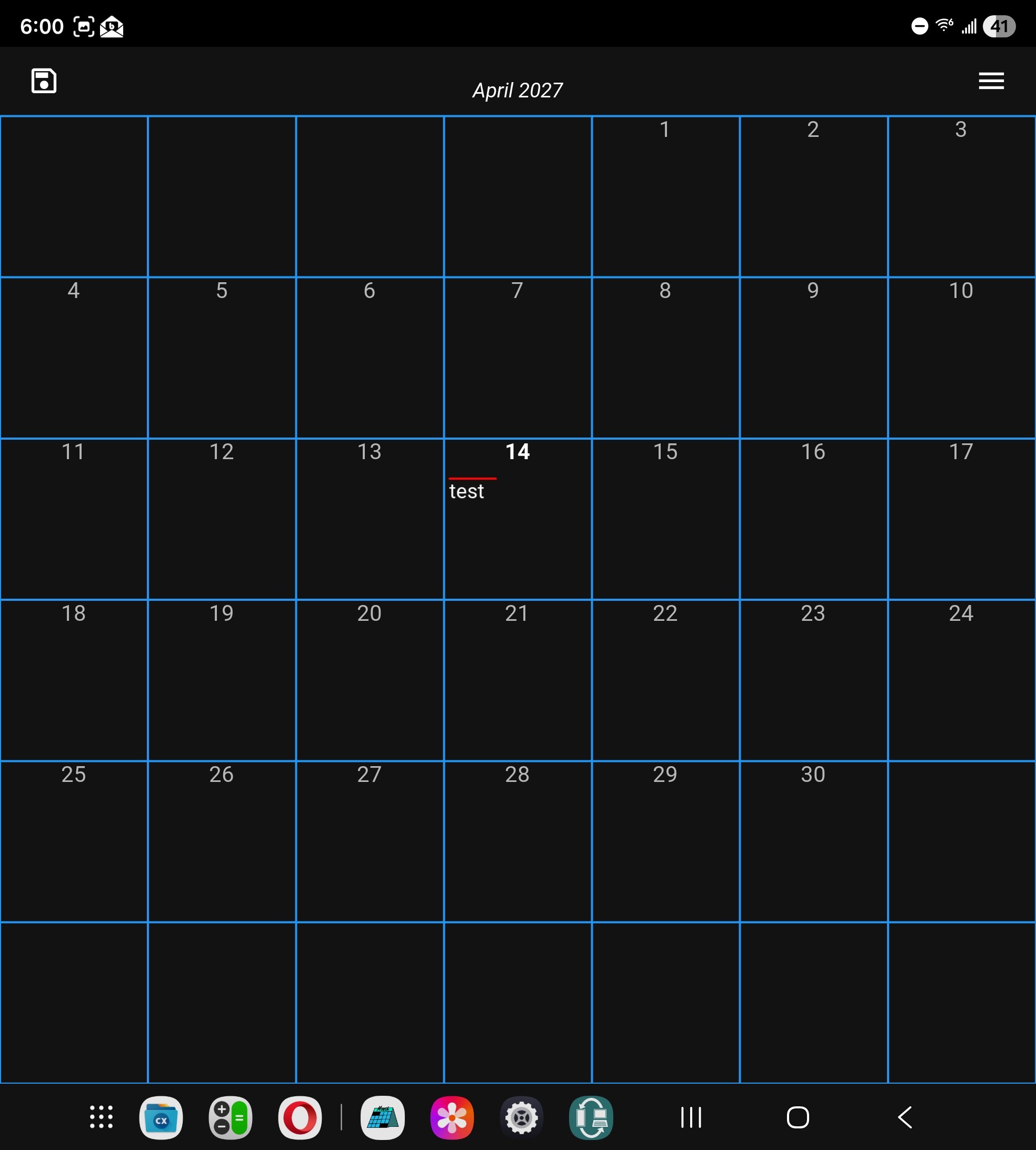
Both Android app sources require no additional installs to use the app and are managed using your device's normal procedures. See also the Android screenshots for visuals of many of the following package details, which apply to both app sources unless otherwise noted.
Android Back taps either return to the Month screen or put the app in paused mode. To close the app in full and reclaim its memory, close it in Android Recents (e.g., by swipe). Caution: Recents closes discard unsaved calendar changes silently: always check the top-of-screen changes indicator, and use the main menu's Quit App to close the app with verifications for unsaved changes.
To uninstall the app completely, use your device's normal procedure. Your calendar files are retained in your calendars folder on uninstalls.
Settings calendar-folder changes. Once granted, folder permission
is not normally asked again except for folder changes. Apart from access to
this single folder of calendars, this app holds no other Android permissions.
Settings-screen configurations are saved in the app's
private storage, which is normally retained on app updates. If enabled,
Android automatically syncs these settings to and from your Google account so
that they are transferred to a new device. Caution: without such syncs, your
settings may be permanently erased if you clear the app's data in your
device's settings.
Device orientations:
This app works in both
portrait and landscape
phone orientations,
but may be challenging to use in landscape mode on narrow phones due
to the height of its month display.
This naturally is less of a factor for foldables, tablets,
and stylus-enabled phones. On other devices, you can address landscape
crunch to some degree by scrolling events or adjusting font size in
the Settings screen for better fit.
As noted, this app also runs in split-screen and
popup modes where supported,
but these may be impractical on smaller screens.
Note edits:
Editing multiple-line Notes in the event dialog is constrained but reasonable on
devices without a physical keyboard. The entire dialog scrolls so you can adjust
when an on-screen keyboard appears, and the app displays both handles and a
Cut/Copy/Paste bubble on text selection and a Select All/Paste bubble on longpress.
There is no in-app support for undo and redo actions, but some on-screen keyboards
provide these as options (e.g.,
Samsung and
Gboard),
and some provide the required PC control key (e.g., the original
Hacker's Keyboard).
See more info here.
Memory requirements: This app's memory (RAM) needs may be higher than average because its GUI is based on the OpenGL graphics system often used for games. While this may impact some phones with limited memory, this app's requirements are less than those of many commonly used apps and games, and virtual and compressed memory ease constraints on some devices.
If in doubt, please vet this app before using it for real data on
limited-memory hosts. Though not generally required, you can also
reduce memory needs by not viewing the app's Help screen
after you become familiar with app usage. Help's text was trimmed
in version 4.4.0 to reduce memory and pauses on phones,
but its full text is freely available online here.
Because this app has no long-running tasks, it is largely exempt from Android app throttling.
Help and About
screens may freeze if it is in the process of being scrolled when a screen change
or app switch occurs. Either wait for scrolls to finish or restart the app.
Files button in the Help
screen may display recent ICS files instead of your calendars folder.
Use a full file-explorer app to view your folder if desired.
Due to a bug in Samsung or Android software, users of the 2025 Samsung Z Fold7 are advised to avoid using the Hide camera cutout choice in Settings, Display, Camera cutout, when running this app on this device's main screen. For this screen, there is a bug in this new setting that causes many apps' layouts to be broken after phone rotations. In this app, it can cause both the system taskbar to overlay the bottom of the app and a portion of the app's right side to be truncated. This has been reported to Samsung and may be fixed soon. Until it is, avoid the setting or don't rotate. See also the related post.
This app's Windows version is distributed on this website, which always has the latest version of this app. It is provided as a zipped and self-contained executable that requires no other software to be installed. See also the Windows screenshots for visuals of many of the following package details.
C:\Program Files, per the tip
ahead).
This will create a folder named Frigcal,
which contains a Windows executable named Frigcal.exe.
In File Explorer, the .exe part may be hidden, and be sure to fully unzip
with right-click/Extract All or similar.
To start the app, run the executable as usual (e.g., by clicking its icon in File Explorer).
The Escape key closes the app if performed on the main Month screen
or returns there if performed elsewhere. Closing the app by either Escape
or window-close button prompts you to save calendars if they have unsaved changes.
To uninstall the app completely, simply delete the unzipped executable's
folder. Your calendar files are retained in your calendars folder on uninstalls.
Settings-screen configurations are saved in
file settings.json
in the install folder (the one made when you unzipped the download) and
can be saved and restored there if you delete and reinstall the app's folder.
Title-bar colors: To change the color of the app's title bar on Windows, set your Accent color in Settings' Personalization=>Colors. For example, if you use Windows' dark theme, you can apply a darker title-bar color by enabling Accent Color's Automatic mode as well as its option to show on title bars.
Antivirus conflicts: To save your events, this app must be able to access the calendars folder you select within the app. Make sure that neither this folder nor this app's install (i.e., unzip) folder or executable are blocked or throttled by your antivirus program (e.g., whitelist them if required). Else, over-aggressive antivirus software may impede this and other programs on Windows.
Browser download warnings: Please ignore the warnings issued by some web browsers when you download this app's zipfile. In particular, Chrome on Windows may display a warning that this zipfile is "uncommon" and may be "dangerous," and it blocks the download. You can easily get past this by clicking the warning's arrow and can disable the opinionated blocks altogether in Chrome by picking Settings, Privacy and Security, No protection. Zipfiles from disreputable sources can be harmful, but this one is not.
Windows WSL2 Linux: Windows users can also run the Linux version of this app in recent versions of Windows Subsystem for Linux (WSL2), but this comes with GUI-quality and storage-speed tradeoffs. Most users may be better served by running the Windows version of this app in Windows. In this scheme, if the calendars folder must be kept in WSL2 storage, it may still be accessed by mapping it to a Windows drive letter. For more info, see the Linux note ahead.
Where to install:
To install the Windows package, unzip it anywhere on your C: system
drive—but not in C:\Program Files
or its Program Files (x86) sibling. Programs don't have
permission to write files in those folders by default (whether you're logged in as
administrator or not), and this app needs to write admin files in its install folder.
Instead, unzip and run in your account's
Downloads or Desktop folders;
anywhere in your account's folder (a.k.a. C:\Users\yourid);
or in C:\any-other, where any-other may
be a folder you create in Explorer for this purpose.
You can still install in
Program Files folders if you use right-clicks to run the executable
as administrator (always) or change its folder's permissions for users in
Properties/Security (once),
but unzipping to another folder is simpler and more secure.
More info on the
web.
This app detects unusable install folders and closes with an info
popup to avoid a startup crash for a failed write; please unzip elsewhere
if this popup appears on first run.
Installing on a network drive is also not generally recommended, because
temporary disconnections may cause admin-file saves to fail. In addition,
unzipping the app anywhere in your account's folder
makes the app and its settings local to you,
and unzipping outside this folder installs for all users.
For example, C:\Users\yourid\AppData is for
you and C:\ProgramData is for everyone, though these specific
folders are not advised or used by this program because they are hidden
(more info).
This app's macOS version is distributed on this website, which always has the latest version of this app. It is provided as a zipped and self-contained macOS app that requires no other software to be installed. See also the macOS screenshots for visuals of many of the following package details.
Frigcal.app. Per
macOS conventions, this is a package folder treated as an executable. To start the app,
run it as usual (e.g., by clicking its icon in Finder), and optionally move the app to
the Applications folder for Launchpad opens (where supported) or convenience.
The Escape key closes the app if performed on the main Month screen
or returns there if performed elsewhere. Closing the app by either Escape
or window-close button prompts you to save calendars if they have unsaved changes.
To uninstall the app completely, simply delete the app (its package folder).
Your calendar files are retained in your calendars folder on uninstalls, as are
settings in Library per the Data section ahead.
In addition, this app was built on macOS Catalina (10.15), has been verified to work on all macOS High Sierra (10.13) through Sequoia (15), and is expected to work on later macOS versions. Earlier versions remain doubtful (an El Capitan device has been seen to issue an incompatibility dialog and prohibit running the app). If you have trouble using it on your PC, please see the source-code alternative below.
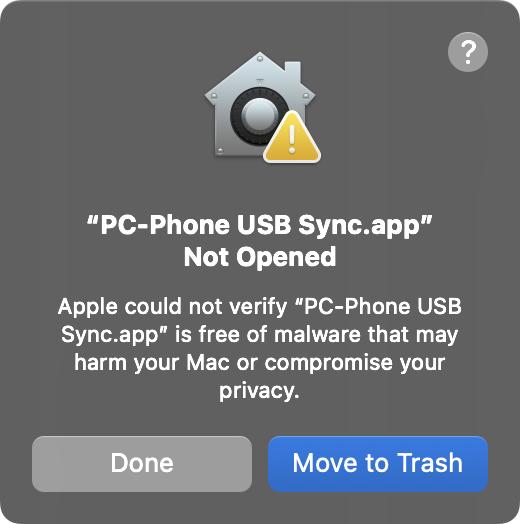
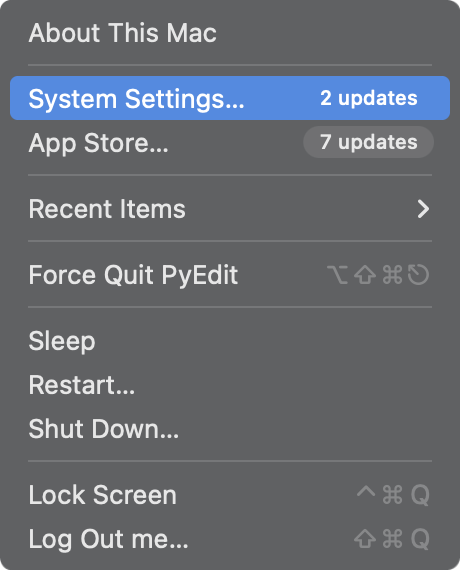
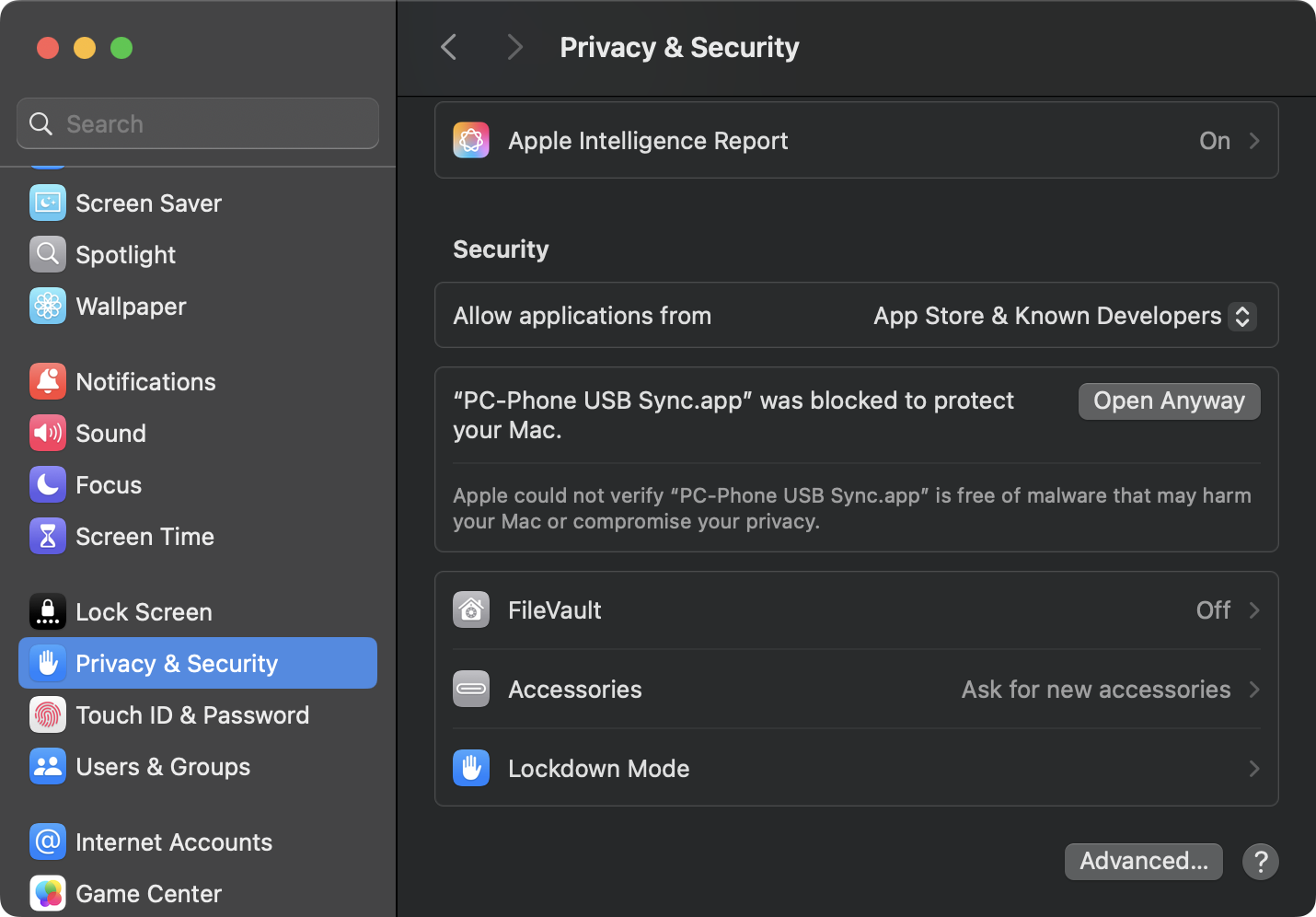
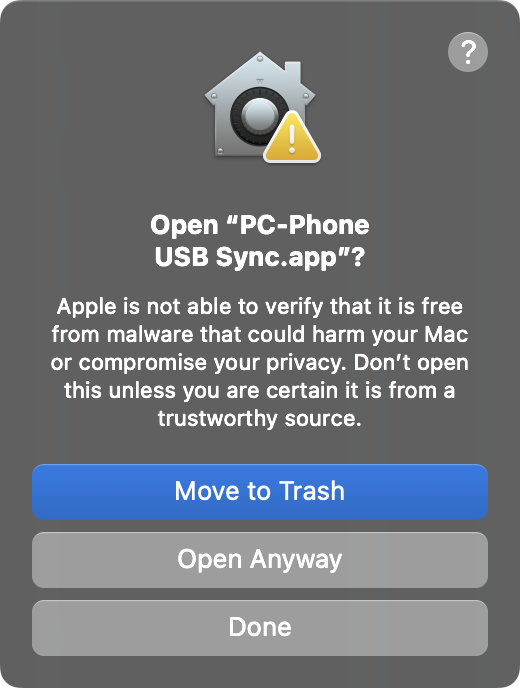
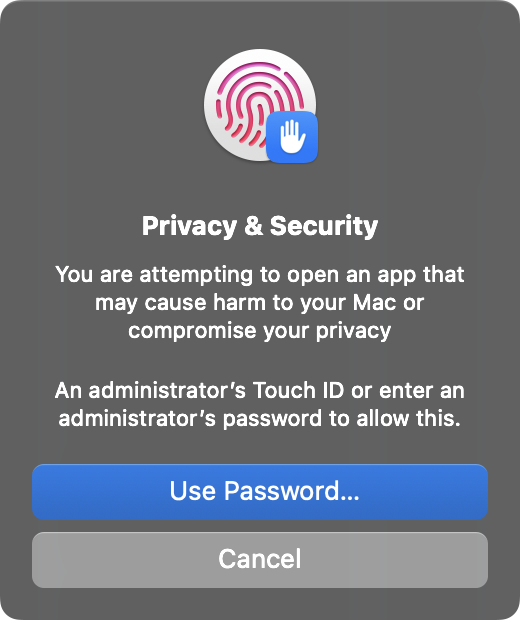
The first popup's "?" gives more info. In some macOS versions you may be able
to get past the first-run warning by simply closing its first popup and control-clicking
the app and selecting Open.
Alternatively, you can avoid the first-run warning altogether by clearing the
app's quarantine attribute added by macOS on download. To do so, run either
of the following sorts of xattr commands
in Terminal before the app is first run. This is a one-time install step
and can be run on either the downloaded zipfile or the unzipped app and in
your Downloads folder, Applications, or other:
$ xattr -c ~/Downloads/Frigcal--macOS.zip      # zipfile still in Downloads
$ xattr -c /Applications/Frigcal.app           # unzipped app in Applications
However done, after you approve the app once, all subsequent launches will run without warnings. Also on this platform, macOS will ask you to approve some folders when they are first accessed by the app; this may be required for some calendars-folder locations.
Settings-screen configurations are saved in
file settings.json in the Frigcal subfolder of
/Users/yourid/Library and are not deleted if you
remove and reinstall the app (you may have to unhide this folder to see
it in Finder: try shift+command+.).
Applications
root folder to make it available in
Launchpad on versions of macOS that support this.
You can also add an alias to the app on your
desktop or drag or pin it to your
Dock,
using your platform's
conventions.
Note scrolling: When scrolling large Notes in the event dialog with a touchpad, you might find it more useful to scroll by grab+move than simple swipe. To perform a grab+move, simply press and hold the touchpad while the cursor is over the scroll area, and quickly do an up or down gesture. This may offer more control over the scroll, though this is naturally subjective, and mouse users' mileage may vary.
._calendar.ics, if they are copied to FAT or exFAT
drives on macOS and used on other platforms. This is a longstanding
macOS scourge, described
here.
As of version 4.1.0, Frigcal silently skips
such files in calendar folders. Prior to 4.1.0,
Frigcal tried to load them as calendars and harmlessly failed, skipping them
with messages in the file-load dialog.
To avoid these files altogether, either remove them after copying
to FAT or exFAT drives on macOS, or use a sync tool that automatically skips them,
such as quixotely.com's free
PC-Phone USB Sync app.
This app's Linux version is distributed on this website, which always has the latest version of this app. It is provided it as a zipped and self-contained executable that generally requires no other software to be installed.
This executable is currently built for Ubuntu 24 and may not work on other Ubuntu versions or Linux distributions due to convolutions of the Linux platform. If it will not run on your host, please use the source-code package instead.
See also the Linux screenshots for visuals of many of the following package details.
Frigcal,
which contains a Linux executable named Frigcal.
To start the app, run the executable as usual (e.g., by clicking its icon in your
file explorer or running it from a command line).
The Escape key closes the app if performed on the main Month screen
or returns there if performed elsewhere. Closing the app by either Escape
or window-close button prompts you to save calendars if they have unsaved changes.
To uninstall the app completely, simply delete the unzipped executable's
folder. Your calendar files are retained in your calendars folder on uninstalls.
Settings-screen configurations are recorded in
file settings.json in the install folder (the one made when you unzipped
the download) and can be saved and restored there if you delete and reinstall the
app's folder.
frigcal-linux.desktop
in its tools folder. See this file's top comments for install
instructions.
In short, you'll edit the file for your user name and paths,
add the app to Applications with a desktop-file-install command, and
right-click the app to add it to the quick-access panel. Alternative: in most file
explorers, you can simply make a link to the program's folder and drag it onto your
desktop for fast starts.
Font size:
The Linux package's font size may be initially subpar on some devices.
To improve, simply change the global font size in the Settings
screen, and tap to save your change; the new size will be used on all later runs.
Windows WSL2 Linux: This app's Linux package works well in recent versions of WSL2 using its default Ubuntu 24 distribution, but its GUI has some quality issues on this platform today, including reduced sharpness and a glitch ahead. As noted, most users may be better served by using the Windows version of the app, and accessing calendar files stored in Linux-native storage via drive-letter mappings in Windows.
Missing libraries:
Due to the choices of the tool used to build this app's Linux executables, it's not
impossible that some required libraries may be absent in both the app's package
and your Linux install. If the app does not run, check for error messages by
launching it from a shell command line and viewing Kivy logs in
~/.kivy/logs/. If you find reports of missing libraries,
try installing these dependencies in your local Linux. On some Linux hosts,
a shell command like the following may resolve some library issues:
export LD_PRELOAD=/usr/lib/x86_64-linux-gnu/libstdc++.so.6
Again, the source-code package is provided as a fallback if the executable won't run on your Linux host due to library issues.
Settings and can occur on any platform,
but it is more likely on Linux, where a small default font size encourages increases.
Smaller font sizes avoid the issue, and bubbles can be disabled in Settings.
While the standalone PC packages described earlier on this page have been built to run on most hosts, they may not work on some PCs whose hardware or software varies from expected norms. If these packages won't run on your device, you can still use this app by downloading and unzipping its runnable source-code package using the link above.
This package is mainly provided as a fallback option to address skew and morph in Linux libraries and distributions and PC platforms in general. It is intended for use on PCs and is unlikely to work on Android due to that platform's app model. This package is also provided for vetting the app and learning about the tools it employs and is always the latest version of this app.
You can view this package's content online here. Because it runs the same as standalone apps and executables, PC-platform screenshots provide previews.
Frigcal--source,
which contains the full runnable source code of this app.
To run the app from its source code, you must also install its dependencies:
apt).
python3 -m pip install package==version,
but try py at the front on Windows, and see
this page
for more info on this process (the virtual environment described there
is not required and is useful only if you do other Python development
on the host).
These dependencies are automatically included with the standalone app and executable packages, and all of this program's packages include additional dependencies that need not be installed separately.
To start the app from its source code, run the file main.py
located in the unzipped folder using any script-launching technique on your platform,
such as file-explorer icon clicks or command lines py main.py
on Windows and python3 main.py elsewhere. Run such command lines
in Terminal on Linux and macOS or in Command Prompt or PowerShell on
Windows.
The following is a comprehensive command-line example on a Unix-based host,
where $ is your command prompt:
One-time setup
— Download and unzip the source-code package per above
— Install Python per above
$ python3 -m pip install kivy==2.3.1 kivymd==1.2.0 pillow==10.4

Each app launch
$ python3 path/to/download/Frigcal--source/main.py
Or
$ cd path/to/download/Frigcal--source
$ python3 main.py
On PCs, the Escape key closes the app if performed on the main Month screen
or returns there if performed elsewhere. Closing the app by either Escape
or window-close button prompts you to save calendars if they have unsaved changes.
To uninstall the app completely, simply delete the unzipped source code's
folder. Your calendar files are retained in your calendars folder on uninstalls.
Settings-screen
configurations file, settings.json, in the unzipped
code's folder alongside main.py.
main.py script that runs it with a single click to start the app.
See your platform's resources for more info. For example, both Windows shortcuts
and macOS aliases on your desktop can start Python scripts with one click.
Also keep in mind that command lines are a UI (user interface) too, and shell
aliases can shorten them for convenience. With minor edits to startup files,
a simple command line such as frigcal
or $fc can suffice to launch this program. This is especially useful on Linux,
which may benefit most from the source-code package. See your host's docs for details.
Frigcal provides extra tools as command-line scripts for optional and special roles that are too rare to warrant inclusion in the app's UI.
These tools come with top-of-file documentation that details their usage,
and are available both online
and in the tools folder of PC and source-code installs.
In installs, look for them in the folder created by unzipping the app
download, and navigate down to Resources in the macOS app.
These tools are generally best used on PCs because they are subject to hosting apps' folder permissions on Android. Per their in-file docs, they may require an install of Python on PCs unless it's already present, and they are run with simple command lines. This category's current offerings:
frigcal_configs.py file.
This is by design, as it makes colors the same on all hosts without having to
keep configuration files in sync.
For users of legacy Frigcal versions, the tools script convert_legacy_colors.py
is provided to automatically convert legacy event colors to the new 4.0 scheme.
This is an optional one-time task; without conversion, colors in legacy calendars will
generally use the default color in 4.0. It is also possible to use calendars converted by this
script in both legacy and 4.0 Frigcal by back-mapping new colors in the legacy configuration
file.
To use this tool, find its zipfile convert_legacy_colors.zip
either online
or in your PC install's tools folder, and unzip it on your device.
If you are using the source-code
package, the tool's unzipped content is available
in tools. See the top of the script file for more usage info.
In short, you will run the script after editing color-mapping files included
with the script.
Tip: you can also use this script to convert calendars created in other programs besides legacy Frigcal. Export your calendars to ICS files in another program, store them in a folder, and map their calendar and category names to Frigcal 4.0 colors all at once by using this tool.
combine-calendars.py may be run to combine all
the events among all calendar files in a folder into a new, single calendar file.
This tool creates a new ICS file in a folder of your choice, and does not alter
or remove the original calendars files or folder. Combining calendars is optional but
may be useful to simplify event adds because the app prefills the event dialog's default
calendar selection to the sole calendar when using just one, though you can also choose
a calendar default in Settings.
To use this tool, find its script
online
or in your PC or source-code install's tools folder, and run it per
the usage details provided at the top of its script file.
Tip: you can also use this script to combine just a few of your calendar files, instead of all. To do so, first move the calendars you wish to combine to their own folder, and run the script on that folder. Then, replace just the combined files with their combination file in your main calendars folder, but retain other calendars there.
For help with using this app after you install it, see the
Usage Overview that's also
available in the app's Help screen.